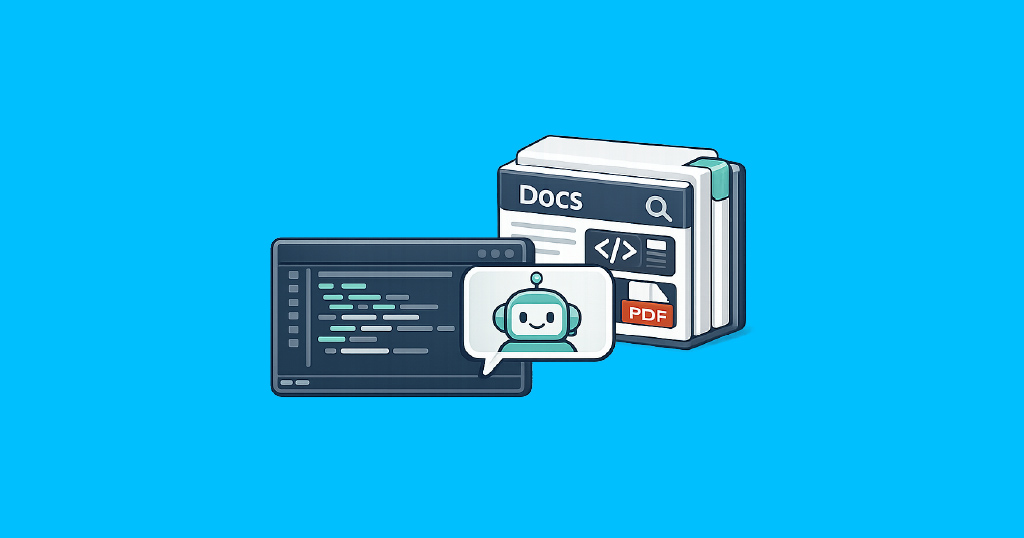
The new integration exists for this very reason: the List & Label documentation is now available as an MCP server through Context7. This enables MCP-compatible development environments such as Cursor, Visual Studio Code, Claude Code, Claude Desktop, Windsurf, and other clients, to access the most recent documentation.
This is especially useful if you have concrete questions about List & Label, for example:
- How do I export a report as a PDF?
- How do I integrate the report designer into a WinForms, WPF, or web application?
- Which data providers are suitable for my data source?
- How do I check existing code against the current API?
Nowadays, people often ask questions like these directly to the AI agent. Without product documentation, the assistant must infer what is likely to be correct based on its model knowledge. With Context7, however, the assistant can retrieve relevant documentation and add it to the context. This reduces the risk of outdated code examples, incorrect parameters, or made-up APIs.
What exactly is Context7?
Context7 is an MCP server that provides up-to-date documentation for AI assistants. If your development tool supports MCP, the agent can use Context7 to retrieve relevant documentation and include it in its answer.
This means that you no longer have to manually search for, copy, and paste each documentation section into the chat. The agent can retrieve the right context itself, as long as your request is phrased accordingly.
What is MCP?
MCP stands for Model Context Protocol. It is an open standard that allows AI applications to connect to external tools, data sources, and resources.
An MCP server provides clients with additional information or capabilities. An MCP-compatible editor or agent can then use these to deliver better answers or perform tasks with additional context. In the case of Context7, the MCP server provides documentation content.
Setting up Context7
In order to use the List & Label documentation through Context7 in your AI agent, you must first set up an MCP server in your development tool. Depending on your setup, you can use Context7 in one of two ways.
- As a hosted remote MCP server
- Locally via
npx
You can create an account with Context7 to use it. We recommend obtaining an API key, especially if you need higher limits and team features. The latest information on plans, limits, and API keys can be found directly on the Context7 website.
Option 1: Remote MCP server
For clients that support remote MCP servers, you can use the Context7 endpoint:https://mcp.context7.com/mcp
An example configuration can look like this:
{
  "mcpServers": {
    "context7": {
      "url": "https://mcp.context7.com/mcp",
      "headers": {
        "CONTEXT7_API_KEY": "YOUR_API_KEY"
      }
    }
  }
}
This option is especially convenient because no local server process has to be started through Node.js. Therefore, it is well suited for teams or setups where Context7 should be permanently available with minimal local configuration.
The exact syntax depends on the respective client. Some tools use mcpServers, others use servers or their own settings dialogs.
Option 2: Local npx version
For local setups, you can start Context7 via npx:
{
 "mcpServers": {
 "context7": {
 "command": "npx",
 "args": ["-y", "@upstash/context7-mcp"],
 "env": {
 "CONTEXT7_API_KEY": "YOUR_API_KEY"
  }
  }
  }
}
This option is helpful if your client expects local stdio integrations or if you deliberately want to integrate Context7 through a local process.
Alternatively, some setups also support the API key as a CLI parameter. Refer to the current Context7 documentation and your client’s requirements.
Automatic setup via CLI
Context7 also offers a CLI setup:
npx ctx7 setup
This allows the setup for certain clients.
Use in Cursor, VS Code, Claude Code, and other clients
After setup, your AI agent can include the List & Label documentation directly in its responses via Context7. You no longer have to manually search for and copy relevant documentation sections into the chat. Instead, you can ask your question directly in the editor or agent.
You can test the connection with a simple question:
What List & Label documentation is available via Context7? use context7 |
Questions about List & Label with Context7
Many clients recognize hints such as use context7 and then include Context7 in the answer. Alternatively, you can explicitly state that they should use the current List & Label documentation.
Example:
I want to use List & Label with an existing SQL data source. Which data providers are suitable for this, and what criteria should I consider when choosing one? Please refer to the current documentation. use context7
Best practices: Ask about specific scenarios
Context7 is especially useful for concrete tasks, such as exporting, integrating a designer, accessing a data source, setting up a deployment, or understanding API behavior. The more specific your question, the more useful the answer.
PDF export
Instead of:How do I export to PDF?
better:Create a simple C# example for exporting a List & Label report as a PDF. use context7
It is even better, if you specify your exact environment:I'm using .NET 8, WinForms, and List & Label. Show me a minimal example for a PDF export. use context7
Designer integration
Instead of:Help me with the designer integration.
better:Show me how to integrate the List & Label Designer into a WinForms application. Explain the most important classes and initialization steps. use context7
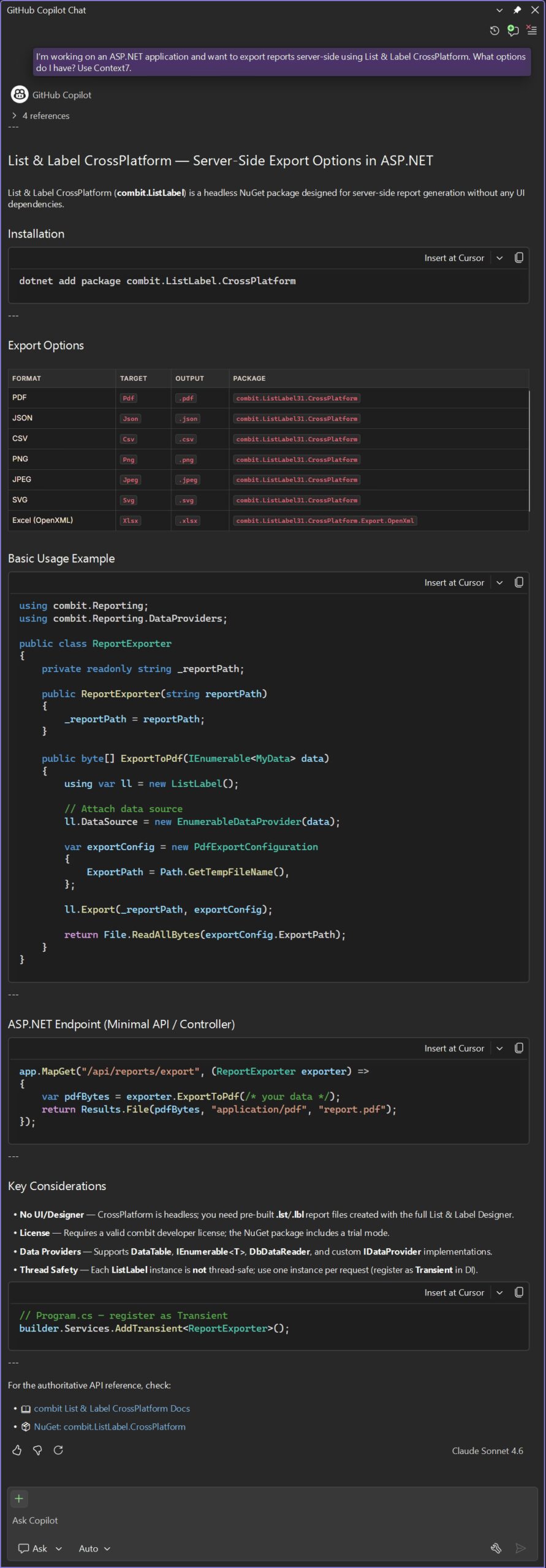
Server-side exports
For web or backend scenarios, you can also provide the context directly:
Checking existing code
Context7 is useful for both new examples and existing code. You can ask your agent to compare code with the current documentation: Review the following code against the current List & Label documentation. Flag any potentially deprecated API calls and suggest specific improvements. use context7
This is particularly useful for modernizing older integrations or for gaining a better understanding of the code of an existing project.
Use Context7 as a starting point, not as a replacement for review
Even with the current documentation, an AI assistant remains a tool. You should still check the generated code against your requirements, tests, and security guidelines. This applies especially to production-critical exports, permissions, data sources, server-side processing, and deployment scenarios.
Conclusion
With Context7, you can integrate the List & Label documentation directly into your AI-powered development workflow. This is especially useful for specific integration questions, for example PDF export, report designer integration, data provider usage, API usage, code reviews, or modernizing existing projects. The key difference is that your agent doesn’t just work with general model knowledge, but can also retrieve relevant excerpts from the current List & Label documentation.
Less searching. Less guessing. More productive context directly in your development environment.

Benjamin works as a full stack developer at combit. In addition to being a part of the dev team, he is also involved in vocational training. In his free time, he engages for the volunteer fire department.